Detect & eject CFexpress cards
Automatic card detection and clear labels, even when cards share a name. Eject one or all with a click or shortcut.

Camera cards, emulator cards & FPV
CFexpress cards can appear as drives, leaving Lightroom without a card-eject option. Automatically detect cards, eject in a click, remove Mac junk files and automatically import verified footage.
Free · macOS 14+ · Apple silicon & Intel
Website 1.7.6 · App Store 1.1 · No ads or tracking
Compare card permissions and updates →
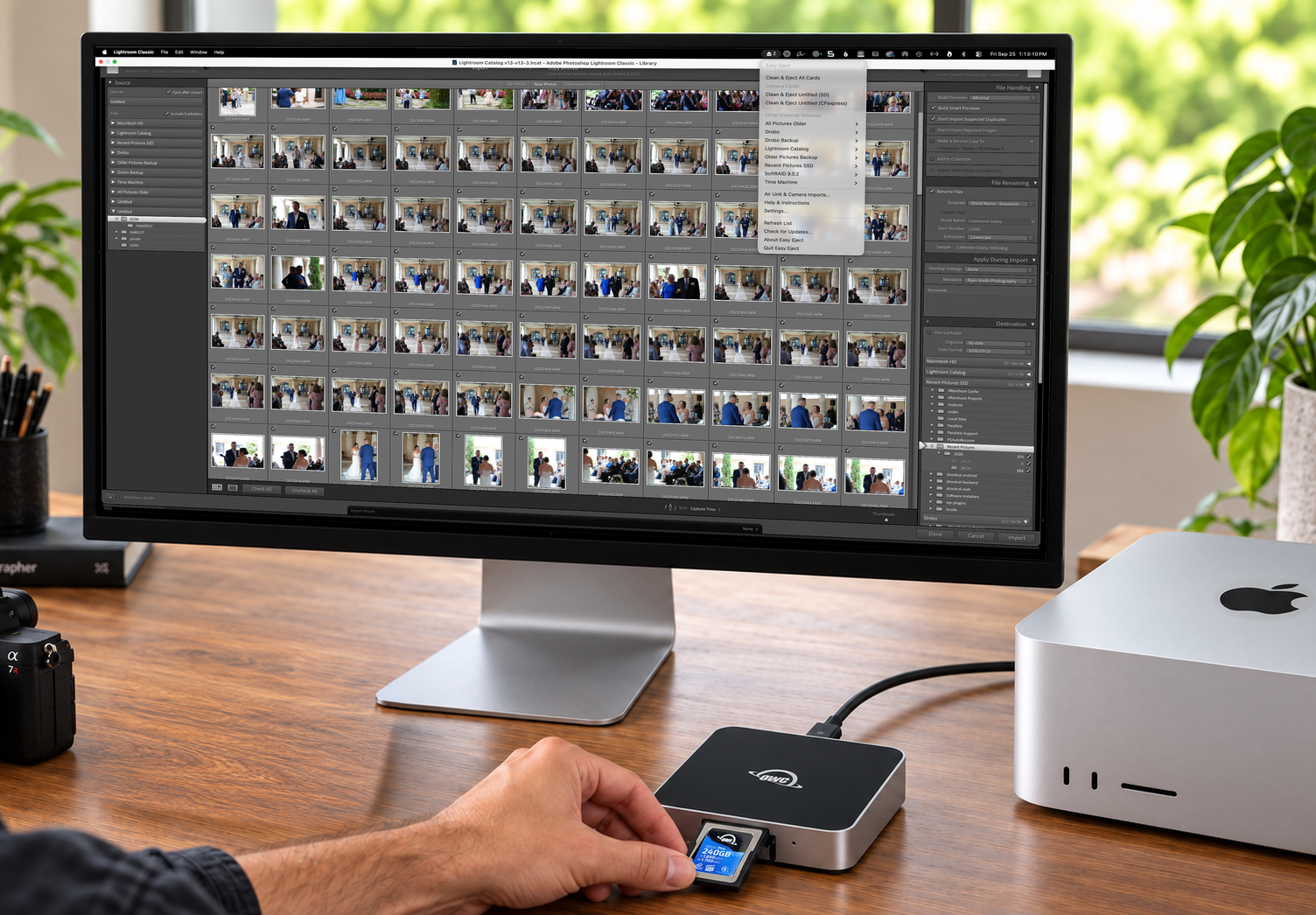
Automatic card detection and clear labels, even when cards share a name. Eject one or all with a click or shortcut.
Clean .DS_Store and ._ files that clutter emulator cards and other devices. Your original files stay put.
Bring in camera, action-cam and FPV media with SHA-256 verification. Choose videos only when Lightroom handles your photos.
Optional camera & device imports
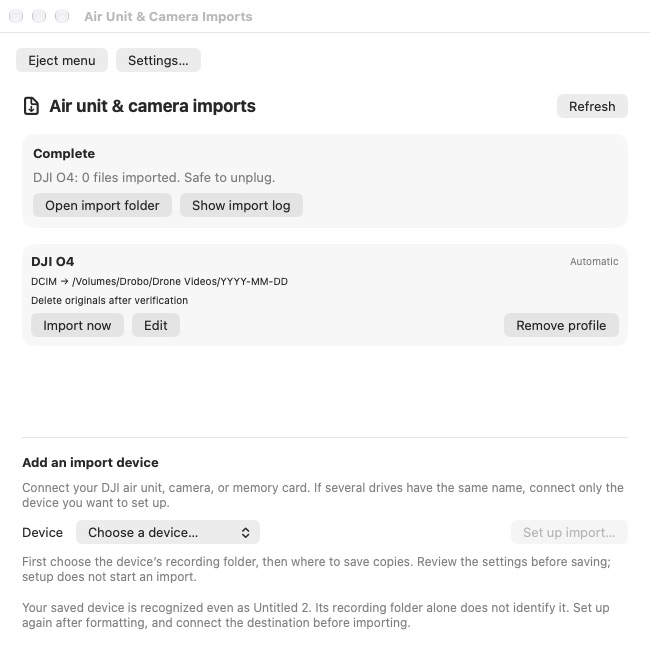
Choose a camera, memory card or FPV device that mounts in Finder. Easy Eject copies to a dated folder on another disk, verifies every file and keeps ordinary media easy to browse—with original filenames and companion files together.
Choose Videos only to leave photos for Lightroom or your usual photo app. Optional verified video deletion clears the imported videos from the device; choose Keep Connected in the completion dialog to import photos next, or choose Eject Now when finished.
Originals are kept by default. New cards start with Videos only and can follow shared defaults or use custom settings. Permanent deletion and Trash recovery start off and require confirmation in shared defaults or custom settings. Follow the Lightroom workflow → or check camera compatibility →.
Insta360 Luna Quick Share · preview. Choose a device LUT once, then make compressed 1080p or 4K sharing copies from a completed import when you want them. Apply the Luna LUT for I-Log footage, or leave it off for normal-color clips. Imported originals stay full quality. This is in the local Website 1.7.8 preview, not the current public download or App Store app. See the Quick Share workflow →.
Cameras, memory cards, action cameras and FPV devices that appear as mounted storage in Finder. This includes suitable Insta360, GoPro and DJI storage connections, but is not a guarantee for every model or recording mode. PTP/MTP-only connections are not supported.
Original media bytes, filenames and selected companion files are preserved. The recognized Insta360 file index is backed up separately and remains on the device. Recognized recording packages retain their required support tree, even in videos-only mode. An incomplete or ambiguous package stops with instructions instead of silently losing dependencies.
Yes. Include camera previews is a separate option for either media selection and starts on, including existing profiles. Turn it off to skip recognized optional LRV, LRF, THM and preview-folder files. Skipped previews stay on the device, even with deletion or Trash recovery enabled. Required package files stay included; some Studio or camera preview features may need these files.
Verified copies go into dated folders. Originals stay unless you enable permanent deletion in custom settings or the shared defaults that profile follows. With Ask to eject after import enabled, a native dialog defaults to Keep Connected. Choose Eject Now when finished. A camera with multiple mounted storage sources gets one grouped confirmation listing what will be unmounted. A no-media result describes the selected source and options; another source may still contain recordings.
Yes. In website 1.7.6, open Import defaults in Device Media Imports or Settings. Set media selection, previews, clean layout, automatic importing, the eject prompt and optional removal. New cards follow these defaults; choose Use custom settings to override them. Changes apply on the next import, while older profiles keep their saved custom settings. Videos only is the initial default; permanent deletion and Trash recovery start off and require confirmation.
Setup & help
Open the download, drag Easy Eject to Applications, and launch it.
Connect your card reader and finish importing with Lightroom or your usual app.
Choose your card in the menu bar. Unplug only after ejection succeeds.
Plain eject needs no import profile or folder authorization. The optional shortcut is Control-Option-Command-E; enable or change it in Settings.
Open Device Media Imports, select the connected device and choose Set up import. Select its recording folder—or the whole card for formats that need their folder structure—then a destination on another physical disk. Choose All media and sidecars or Videos only, choose whether to include camera previews, review the profile, and save. Saving does not start an import. Try Import now before enabling automatic importing.
Optional permanent deletion checks the saved batch first, bypasses Trash and cannot be undone. It removes only eligible imported files; photos and their sidecars stay on the device in Videos only mode. Unknown files, device indexes and skipped previews stay too. Keep independent backups and leave deletion off when testing a device. Trash recovery is separate and opt-in; Videos only limits it to recognized videos and their companions. The Store version needs whole-card authorization for Trash recovery.
Cards named Untitled 2 are supported. Import profiles match volume identity, not the name or a DJI folder alone; set up the profile again after formatting in either version. Readers reporting CFexpress hardware can classify directly; generic PCI/NVMe readers may require camera-folder inspection. If the Store version lacks folder permission, authorize the card or use plain Eject under Other External Volumes.
Read the issue in the app. Dismiss clears its warning indicator without retrying or changing your profile. For a busy disk, finish transfers and close apps using it; Easy Eject does not force unmounts or eject disks involved in its active imports. For denied access, reconnect and reselect the card or import folders. Website users can review macOS Privacy & Security → Files and Folders.
Still stuck? Read the full help center →, Contact Ryan → or report an issue →. Include your app/macOS version, device and error. Avoid posting private footage, credentials or import logs containing private paths.
Choose your version
Available now · 1.7.6
Free, signed and notarized. macOS 14+, Apple silicon and Intel.
A convenient choice if you regularly swap or format camera cards. No Easy Eject per-card authorization for detection or cleaning; macOS may still ask for drive access.
Downloads come directly from GitHub Releases. Easy Eject automatically checks for signed updates and asks before installing. Turn automatic checks off in Settings if preferred. Users of 1.6.2 or earlier need one manual upgrade to get the updater.
Available now · 1.1
Free on the Mac App Store, with updates managed by Apple.
Card access needs your permission. Authorize each card for cleaning and folder-based detection. Access is normally remembered across reconnects and app restarts; formatting a card can require authorization again.
Some CFexpress readers need camera-folder inspection before Easy Eject can recognize the card. The Store version needs card authorization for that inspection. Full Disk Access does not remove this sandbox restriction. Plain eject works without folder access.
Compare permissions in detail →
Version 1.1 includes videos-only imports, shared defaults, camera-preview and layout options, and updated eject dialogs. Quick Share is a separate Website-edition preview.
Normally, no. Once you authorize a card, Easy Eject remembers that volume across reconnects and app restarts. A new card, formatting that changes its identity, or an invalid saved permission can require authorization again. Hardware that explicitly identifies itself as CFexpress can be recognized without folder access; generic PCI/NVMe readers may need camera-folder inspection and a card grant. Full Disk Access does not bypass the App Sandbox. Plain Eject remains available without a folder grant.
Website 1.7.0 automatically checks GitHub for signed updates. You approve installation, and Easy Eject waits for active imports, ejection and open dialogs before restarting. Automatic checks can be disabled in Settings. Website 1.6.2 and earlier need one manual download to get this updater. The Store edition updates through the Mac App Store, including automatic updates when enabled in your App Store settings.
Quit the current copy before switching. Each version has its own settings and permissions, so review profiles in the version you choose. Do not run two automatic importers for the same device. In both versions, plain eject needs no folder authorization, and formatting may require import-profile setup again.
Built around real card problems. I originally added cleanup for emulator cards affected by Mac junk files. My Sony A7RV’s CFexpress cards also needed a better way to eject after Lightroom imports—and identically named cards were hard to tell apart.
By Ryan Smith →, photographer, FPV pilot and the developer of ShootCal →.
Privacy policy
Effective September 28, 2026. This policy covers both versions of Easy Eject, made by Ryan Smith Photography, LLC.
The App Store version has no accounts, advertising, analytics or network entitlement. It works with files on your Mac and connected storage; it does not upload your media or collect personal data.
Device IDs, folder permissions, settings and import logs stay in the app’s local sandbox. Logs may contain filenames and paths. Saved macOS folder grants let the app reuse access after relaunch. Removing a profile removes its saved permission references.
The app reads file metadata and available disk space to check imports, and saves preferences such as launch settings. These checks do not create a tracking profile.
The website version also processes media locally and has no advertising or analytics. Its update checker contacts GitHub for releases and downloads. GitHub receives connection information such as your IP address. Settings, profiles and logs stay on your Mac. From version 1.7.0, automatic checks contact GitHub periodically; you can disable them in Settings. Installation requires your approval. No system profile is sent.
Opening a website link uses your browser. Those websites process information under their own privacy policies. If you contact us, we receive the information you choose to send and use it to respond and troubleshoot. Please avoid sending private media or unnecessary personal information.
This site is hosted on our own web server and delivered through Cloudflare. The hosting services process normal connection information to deliver and protect the site. We do not add advertising trackers or analytics cookies. Download and support links lead to third-party services.
For privacy questions, contact Ryan Smith Photography. Changes to this policy will be posted here with an updated effective date. Contact Ryan Smith Photography →